The ID Watermark Trap: How to Write on Image Offline Without Handing Over Your Passport
Why stamping a passport or ID copy on a photo editor site is a bad trade, and how to write on image offline in your own browser with the text burned in.
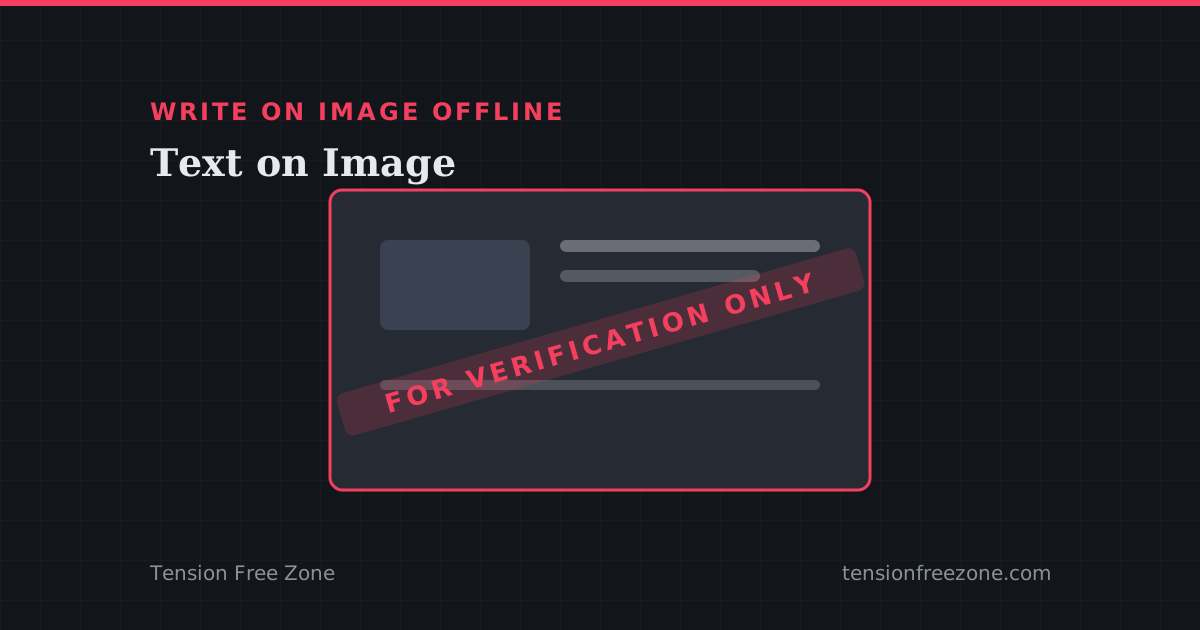
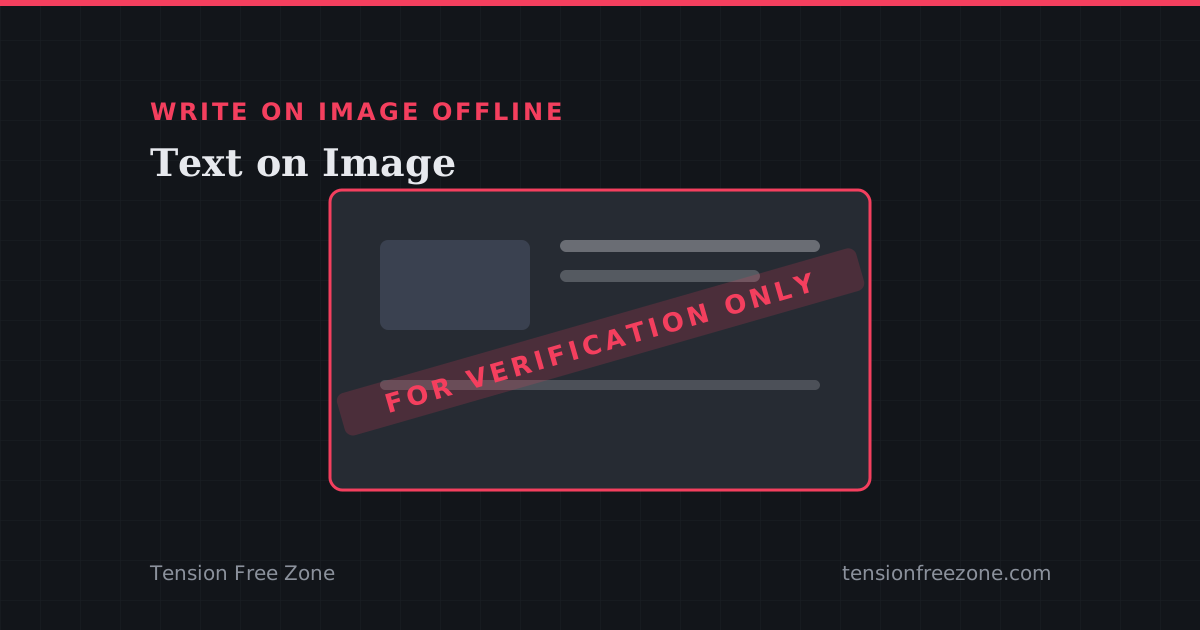
The email asks for a copy of the passport with the words for verification only across it. Writing that on the image should take a minute; on most websites it means uploading an identity document to a company you have never heard of. If you want to write on image offline instead, the whole job fits in a browser tab.
A passport scan is the worst possible file to hand over. It carries a name, a date of birth, a photograph and a document number, and it does not expire the way a password does.
What an upload actually gives away
Free image editors are not charities. The ones that do not charge a subscription are usually paying for bandwidth and storage some other way, and an image upload is a copy that exists on hardware you cannot see, under a retention policy you did not read, for a period nobody has told you.
You cannot audit any of that from the outside. The honest version of the decision is simply that some files are not worth sending anywhere to save a minute of work, and identity documents are at the top of that list.
Stamping a copy inside the browser canvas
The browser can already do this job. An image loaded into a canvas can have text drawn over it, and the canvas can be exported back to a file, all on the machine that opened it. No upload step, because there is nothing a server would add.
That is what Text on Image does: load the picture, place the text, adjust size and position, and export. The file that lands in your downloads folder has the stamp burned into the pixels, not layered over it, so it survives being screenshotted or pasted into a document.
Making a stamp that cannot be cropped off
A tidy label in the corner is the weakest version of this. Anyone who wants the original can crop four percent off the edge and the warning is gone.
Running the text diagonally across the middle of the image, or repeating it in a faint band, means the marking is over the part of the document someone actually needs. Keep it readable rather than decorative: a verification stamp exists to be seen by the person checking the copy.
- Diagonal placement across the subject, not in a corner.
- Full words rather than a logo, because the reader has to understand the restriction.
- One stamp is enough. A busy image looks edited, and edited copies are the ones that get questioned.
Checking the export before you send it
Open the downloaded file rather than trusting the preview. The things worth checking are the ones that get a document rejected: the stamp is legible at the size a reviewer sees, the text has not been cut off at an edge, and the image is still sharp enough to read the small print.
If the recipient asked for a specific format or a size limit, set that before exporting rather than resizing afterwards and softening the stamp along with the rest of the image.