The Limit Nobody Mentioned: Getting a Scan Under 100KB Without Making It Unreadable
Why a scanned PDF refuses to shrink, which settings actually reach 100KB, and how to test the result before a portal rejects the upload.
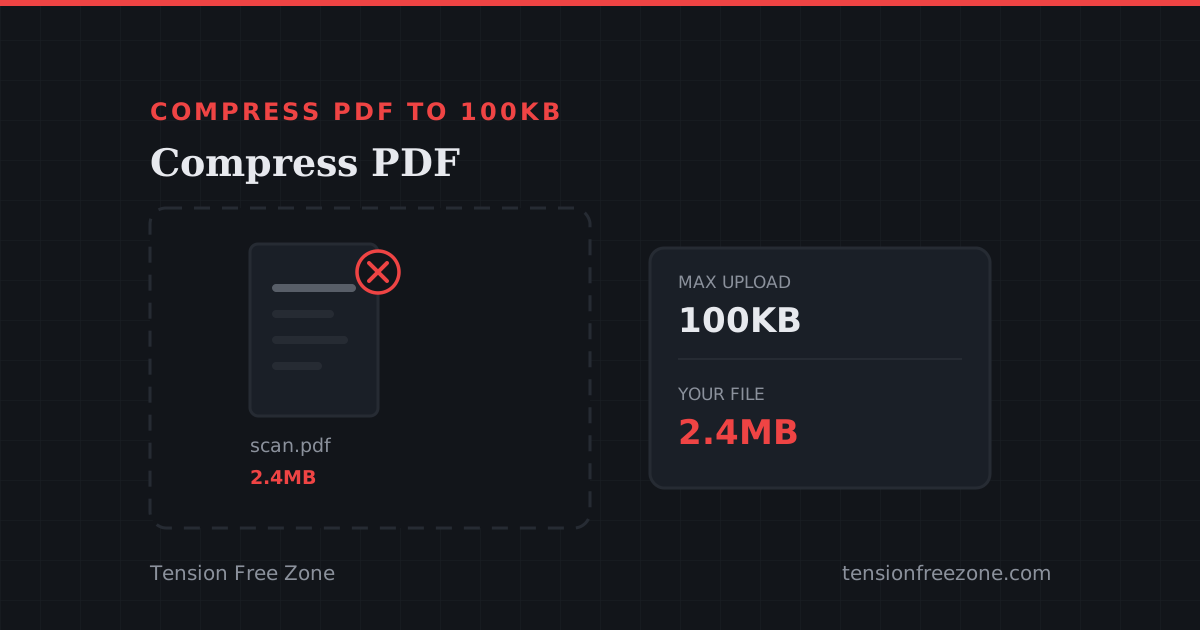
The instruction on the portal is one line and it does not negotiate: compress PDF to 100KB or the upload will not start. The file in question is a four page admission form, photographed on a phone in decent light, 2.4MB. It is perfectly readable and completely unacceptable.
The usual advice, that you should just compress it, hides the real question. A hundred kilobytes is not a quality setting; it is a budget, and what that budget buys depends entirely on what is inside the document.
What is actually taking up the space
A PDF made by a word processor is mostly text and is already small: 60 to 200KB for a long document, because text is stored as characters rather than pixels. Compressing one of those barely moves the number, and every guide that promises a 90 percent reduction is talking about a scan.
A scan is different. Each page is one large image, and a 300 DPI colour photograph of an A4 page carries about 25 million bytes of raw data before compression. That is where 2.4MB comes from, and that is the only place a 100KB target can be found.
- Resolution is the biggest lever: halving the DPI quarters the number of pixels, and most portals only need enough detail to read the fields.
- Colour is the second: a black-on-white form stored in greyscale is roughly a third of the size of the same scan in colour, with no loss of legibility.
- JPEG quality is the last few percent, and the one people reach for first because it is a slider rather than a decision.
The order to try the settings in
Change one thing at a time, largest effect first, and stop as soon as the file fits. Start by opening the PDF in the compressor and reading the size it reports, so the target is a measurement rather than a hope.
Then take the colour out. A greyscale scan of a form is not a compromise: the original was black ink on white paper, and the colour in the photograph is the tint of the room it was taken in. After that, drop resolution to 150 DPI, which is still enough for a signature to be recognisable and a printed form to be legible. Only if the file is still over the limit should quality come down, and it should come down by ten points at a time.
A worked example on a real form
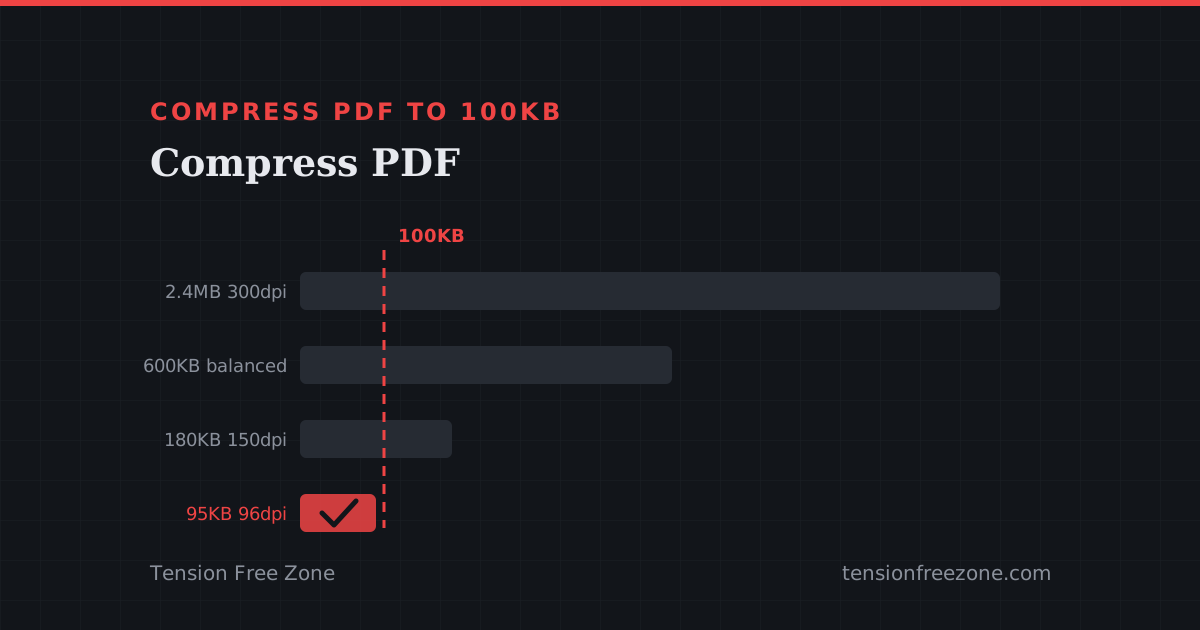
The 2.4MB form from the opening, compressed at a balanced setting, lands around 600KB. That is a 75 percent saving and still six times over the limit, which is the point where people conclude the tool does not work and start looking for a different one.
The same file converted to greyscale at 150 DPI lands near 180KB. At 96 DPI greyscale it reaches about 95KB, inside the budget, and the typed fields are still crisp because they were never photographic detail. What softens is the handwritten signature, and at the size it will be printed it remains perfectly sign-like. A colour 300 DPI scan cannot reach 100KB without becoming unreadable, and no setting will change that.
Test the result before the portal does
Open the compressed file and zoom to 100 percent on the part that matters: the signature, the photograph, the roll number. Then check the page count has not changed, because a compressor that drops pages meets the size limit and fails the application.
If the form has several pages and only one is a scan, it is often faster to split it first, compress only the heavy page, and submit the pages the portal asks for. A text page does not need to be crushed to make room for a photograph of a signature.
Why this happens in the tab, not on a server
An admission form carries a name, a date of birth, an address and often a photograph. Uploading it to a stranger's server to make it smaller means a copy exists somewhere for a period you did not choose, under a policy you did not read. Compression is arithmetic, and arithmetic does not need a server: it runs on the machine that already has the file, which is why this one runs in the browser.